Site Generator
The real context — footprints, roads, terrain and the parcel — fetched into your canvas.
Type an address (or lat, lon), set a radius, Fetch — Jimin pulls the real context into your canvas. Set your view (Front/Back/Left/Right/Top, axon, worm's-eye; lens in mm) before rendering so the camera matches your intent.
What arrives is a scene, not a picture: mapped building footprints, roads, terrain, and the legal parcel boundary where a public record covers the address. Your massing goes into it.
How it composes
Into 3D. The site lives in a 3D block. Shape massing into it with Designer; the parcel boundary is a real constraint the scene knows about.
Into Render. Capture a view and wire it on — 3D to Render. A capture that includes real neighbours gives an engine w/ edit the context it would otherwise invent.
Into the conversation. Ask Jimin for the site's facts — parcel area, terrain range and slope direction, building count and height spread, zoning where a public GIS record covers the point. Reading a fetched site costs nothing.
Accuracy of the fetched data
Fetched context is public mapping data: it is accurate about where things are and vague about what they are. Heights are estimates, and a record can be missing entirely. Zoning research is a starting point — verify with the local authority.
Designer
Massing you make on the canvas — primitives, edited in plain words.
Use the Shapes tool to drop primitive geometry into the 3D workspace, or ask Jimin to place simple blocks for you.
Revising in plain words
Select any 3D object — or click its layer — and ask Jimin to revise it: "make it taller," "make it wider." The goal is not a fully refined model; it is to get ideas into space quickly and visualize concepts at the speed of the conversation.
Prompt Writer
A rough line becomes structured, ordered phrases you can edit and compare.
Jimin can help enhance your prompt.
Enhance
Click and she expands your idea into structured, ordered phrases. That structure preserves your intention and keeps every iteration legible — you can see exactly what changed between runs.
Canvas Organizer
Grids, guides, boards and notes — keeping a working canvas readable.
There are infinite ways to keep a canvas neat. If you want to be fully hands-on, the canvas is built with native grids and guides for aligning things. Or ask Jimin to arrange the canvas for you.
Other Organizing Tools
- Board — a sized backdrop to lay work out on: options in a row, phases in a column, a wall for a crit.
- Note — the reason. Which option won, what the client asked for, what to do next.
- Formats — Table, Timeline, Doc and Calendar: the structured surfaces for text and schedule. Doc assembles pages from canvas work and exports (.docx) — the canvas is also the layout table.
- Order — Ctrl ] and Ctrl [ move a block through the stack; ink and blocks share one order.
- Hide — hidden blocks leave the view and come back together from the chip in the header.
Sketch Renderer
Draw it, wire it, run — the fastest idea-to-image path in the app.
Sketch. A drawing surface whose strokes export as render input. The fastest idea-to-image path in the app: sketch it, wire it, run.
How it composes
Into Render. Wire the Sketch block to a Render block's IMG port exactly like an Image block. An engine w/ edit will follow the lines; a generation engine will treat them as suggestion.
Over a photograph. Place the photograph, sketch on top, and the render inherits both — the real context and your intent about it.
Over a previous result. Take a result you like, sketch a change over it, and run again. Two minutes of drawing is more precise than a paragraph of description.
Reference Finder
Precedents found, placed and attributed — and your own files on the canvas.
Two halves of one job. Finding: ask Jimin for precedents and she searches the live web, presents candidates, and places the ones you pick as attributed reference cards — "build me a reference board" is one command for the whole flow. Bringing your own: the Reference tool in the Viewer rail places a file straight on the canvas — image, PDF with a page stepper, or document.
Mapping Inputs To Correct Ports
A render listens to each input according to the port it arrives on — so put each input on the port that matches its job. Your design goes to the IMG port: it is the geometry the engine must respect. Style references ride a Reference block: take the mood, lighting, or material language from this. Materials wire to MAT ports to assign a specific material to a specific region — this concrete, on that wall. If a reference starts redrawing your building, it is on the wrong port: move it out of the IMG chain.
The Bottom Line
We take authorship seriously. Fetched web imagery lands only as attributed reference cards, for study — the app will not wire a reference card into a generation, and Jimin will never suggest it. Even with AI engines in the loop, the originality of your work is yours to keep and ours to protect. What we can enforce today has a ceiling, and we are committed to raising it — developing functions that preserve the authorship of what our users make is ongoing work, and our users come first at every step.
Image Editor
Surgical change — paint a region, describe what happens there, run.
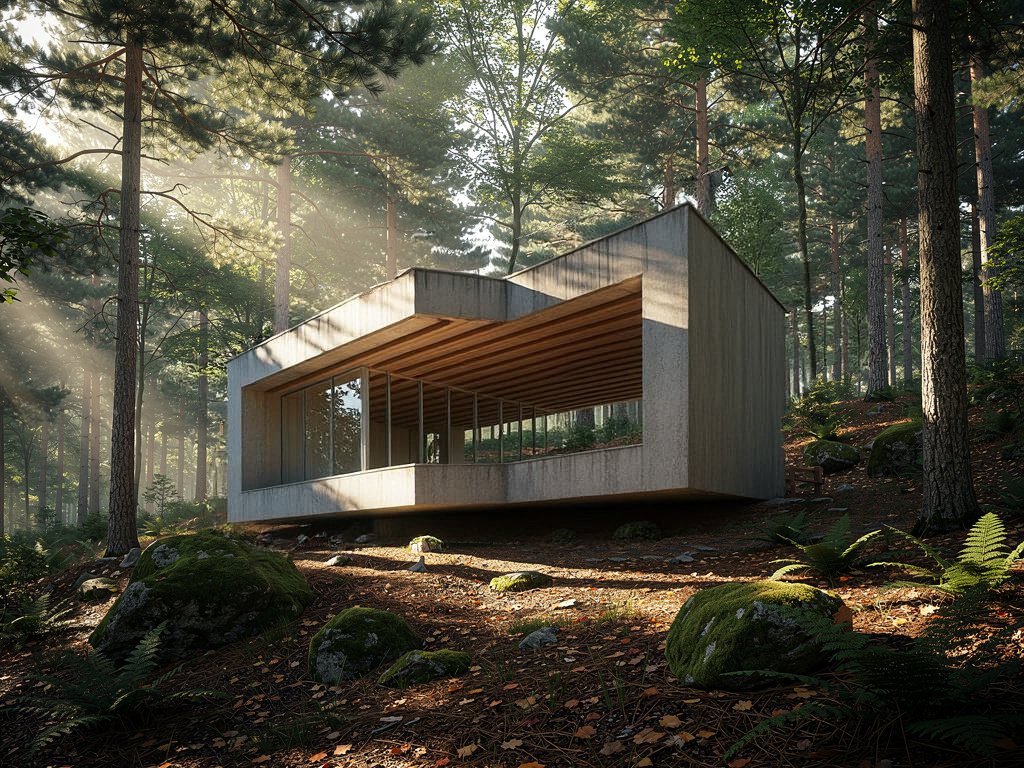
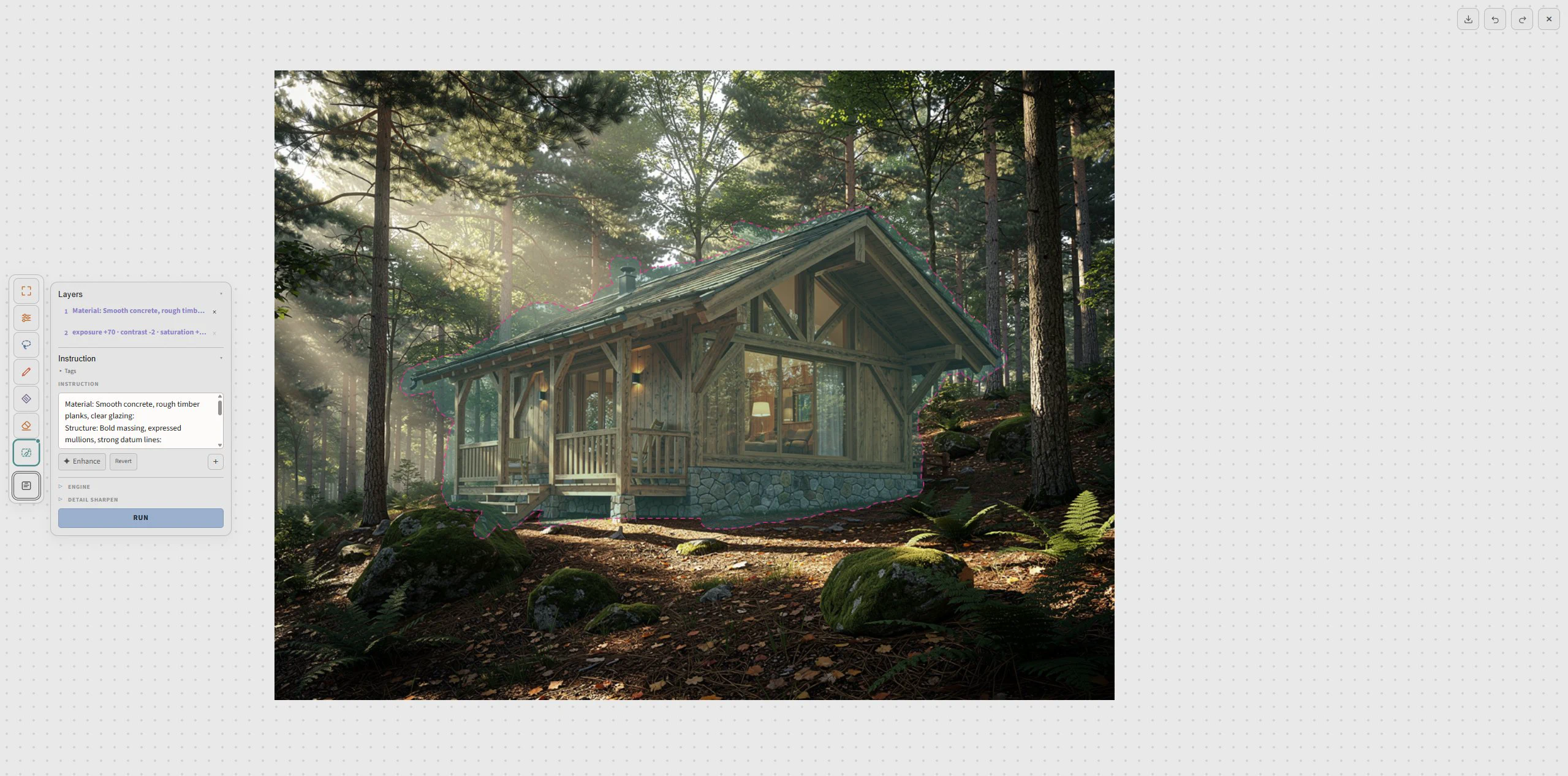
Modify is surgical: paint a region, describe the change, and only that region changes. Save a selection (your facade, your roofline) and reuse it across runs — name it and it stays with the canvas. The eraser + region fill handles removals: mask what should go, describe what fills the space.
Tools in the Modify room
Modify opens a room rather than a panel. It carries selection by lasso or smart-select, a general instruction for the whole image, material assignment, populate, eraser, transform, adjust, inpaint and background removal. The composer panel is where you write what happens.
The discipline
One change per run. Three runs changing one thing each will beat one run changing three things, every time.
Collaborative Agent
Jimin on the canvas — what she can do, and what she will never do.
Jimin is our trained agent, and she serves you on the canvas. She can arrange your work and keep it neat, offer an opinion on your design, and bring you what a project needs — insight on site usage, licensed materials, references, and other relevant resources. (Viewer seats browse and comment; creating and chatting with Jimin are Editor rights.)
Jimin has a visible cursor. When she acts you watch blocks land, and what lands is a normal block — yours to edit, move or delete. She never presses Run: every run that spends credits is started by you.
When to ask Jimin
- Setting up a workflow you have not built before: "wire me a GeoLock study from this massing."
- Arranging: "tidy this canvas" — one pass, everything back on its column.
- Finding: precedents, materials, the facts of a fetched site.
- Asking: what a block does, why a run drifted, what to change next.
What Jimin can do
- Read the canvas — every block, every wire, the selection, and where your pointer is.
- Create workflows — describe what you want and she sets up the whole thing in one pass: blocks created, wired, and arranged.
- Write notes and prompts into blocks.
- Read a site — give her an address and she reads the site's facts back to you: parcel, terrain, context, and zoning where a public record covers it.
- Design — simple massing blocks, placed and oriented to the site boundary.
- Research precedents and place them as attributed cards; find materials in the licensed library and place them as usable textures.
- Look at an image on the canvas and describe what is actually there.
Jimin's bottom line
- She never decides for you. Jimin arranges, suggests, and prepares — you choose, and every run is started by you.
- She never pretends to know. If Jimin doesn't know something, or can't do it yet, she says so in one line and stops.
- She never violates authorship. The Bottom Line applies to Jimin too — fetched imagery stays reference, and your work stays yours.