Welcome
Who Jimin is, and the five-minute mental model.
What separates Jimin from prompt-reliant tools: Jimin rewards those who prompt less, and favors the accurate and the precise.
Who is Jimin?
Jimin is the collaborative agent that connects the dots. She lives on the canvas and can be called on at any time for research, analysis, gathering information, organizing your workspace, and more.
She is trained to look at the work on your canvas specifically, so what she brings back is always relevant to the project in front of you.
Blocks
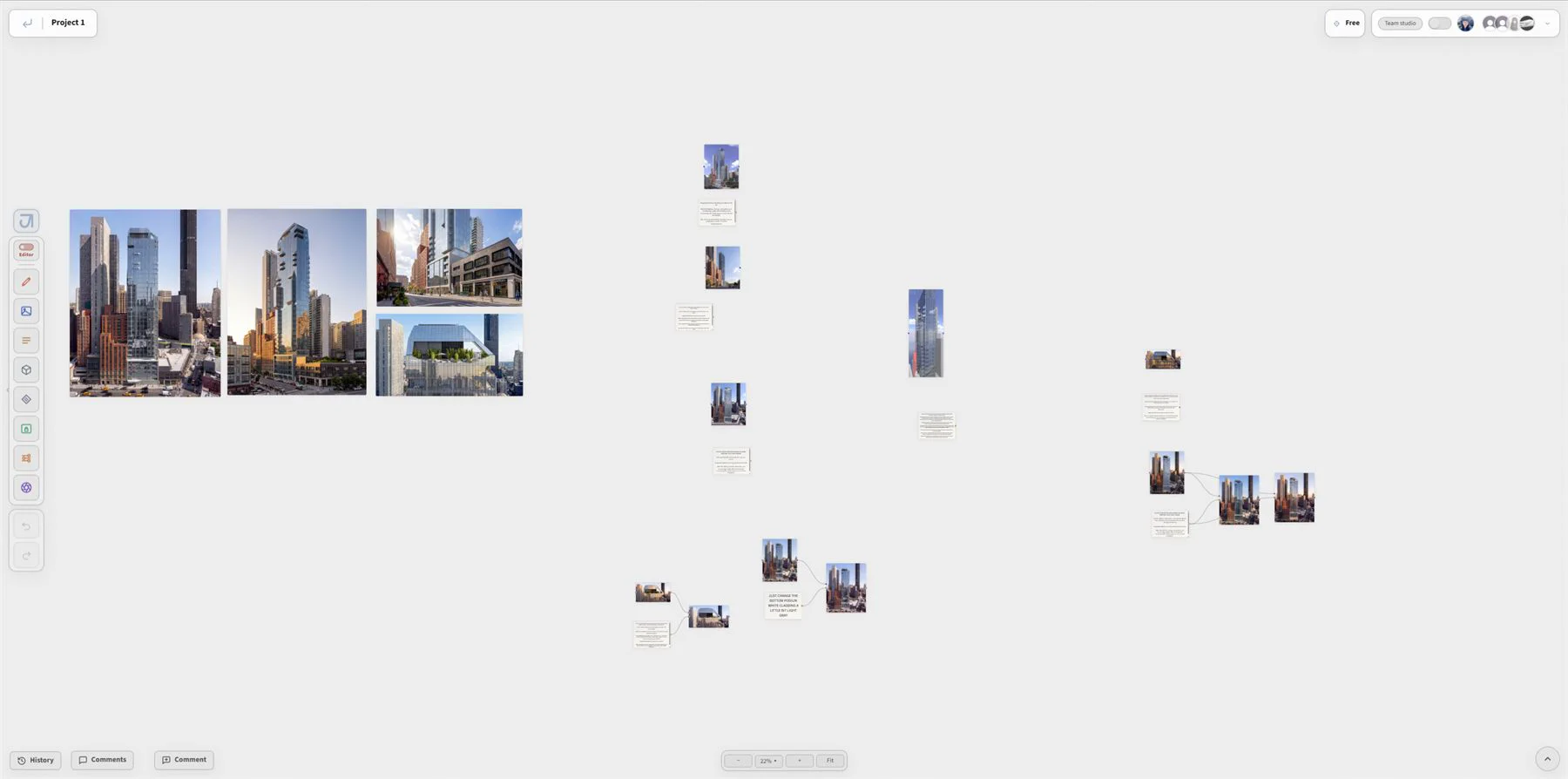
Containers of work: Image, Text, Render, Iterate, 3D, Sketch, Reference, Material, Doc, Table, Shape, and Note.
Ports
How blocks feed each other. IMG carries imagery, TXT carries words, and MAT carries materials.
Run
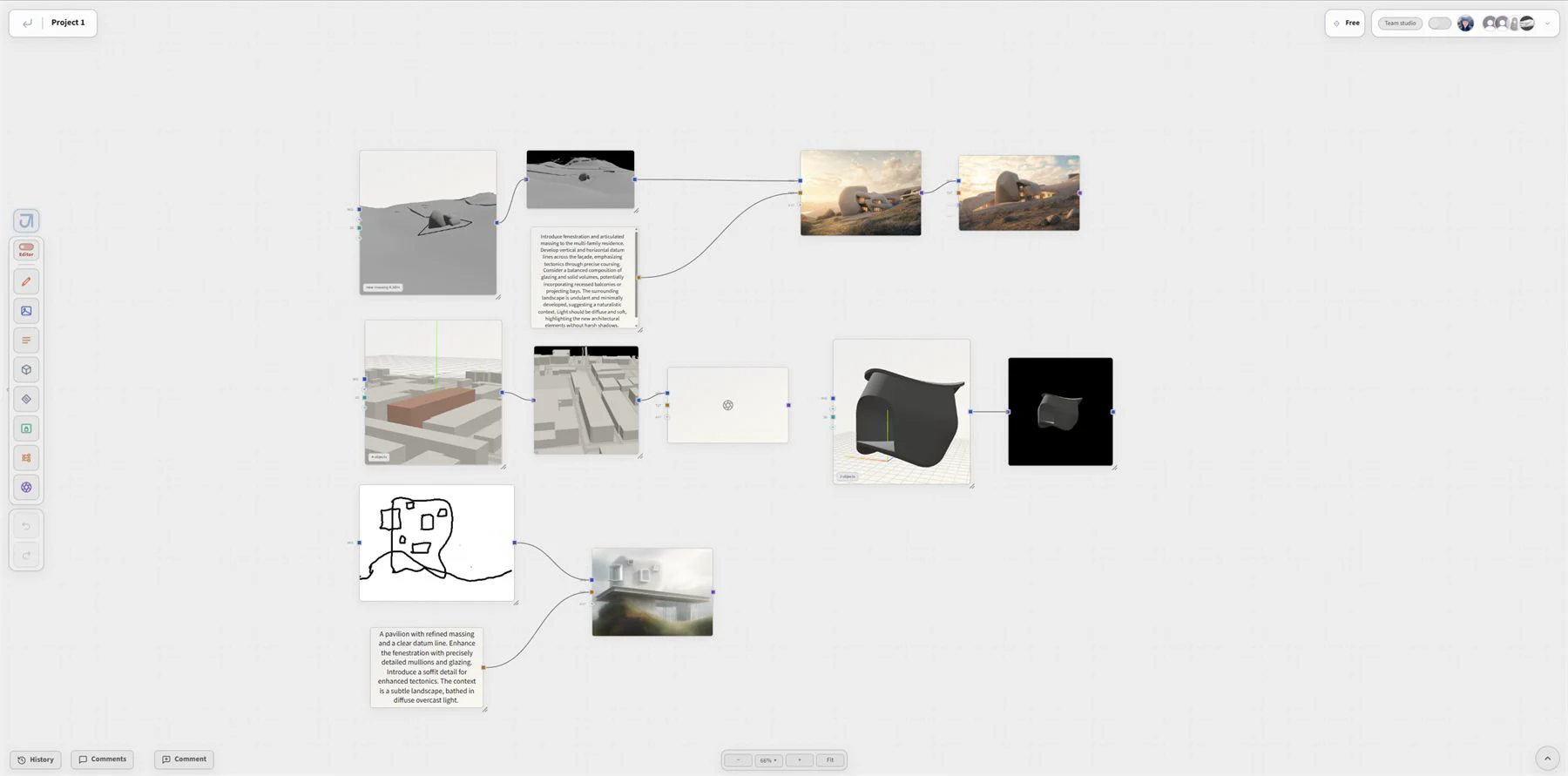
Executes a block using everything wired into it. Drag from port to port, then run the block downstream.
Canvas
The infinite, collaborative surface every project lives on.
A canvas is the infinite, collaborative workspace shared by you and your team. It holds everything you gather, generate, and share. Every canvas has its own link, private and secured by default, and switchable to public at any time.
Creating a new canvas
creates a new canvas. Each canvas carries its own unique link that can be shared with team members. Renaming a canvas, managing its access, and deleting a stale one are all done from the projects page through the menu.
Sharing a canvas
Every canvas has its own link. Sharing is per-canvas, never per-account: a canvas is private by default, and the Share dialog is where it stops being private. Flip it public and the link works; invite people by address and they arrive with a seat.
Revoking a link. Turn sharing back off and the link stops working. People you invited keep their seats until you change those separately.
Access
Admins are the account owners, the studio or team operators. They open Editor and Viewer seats under their account.
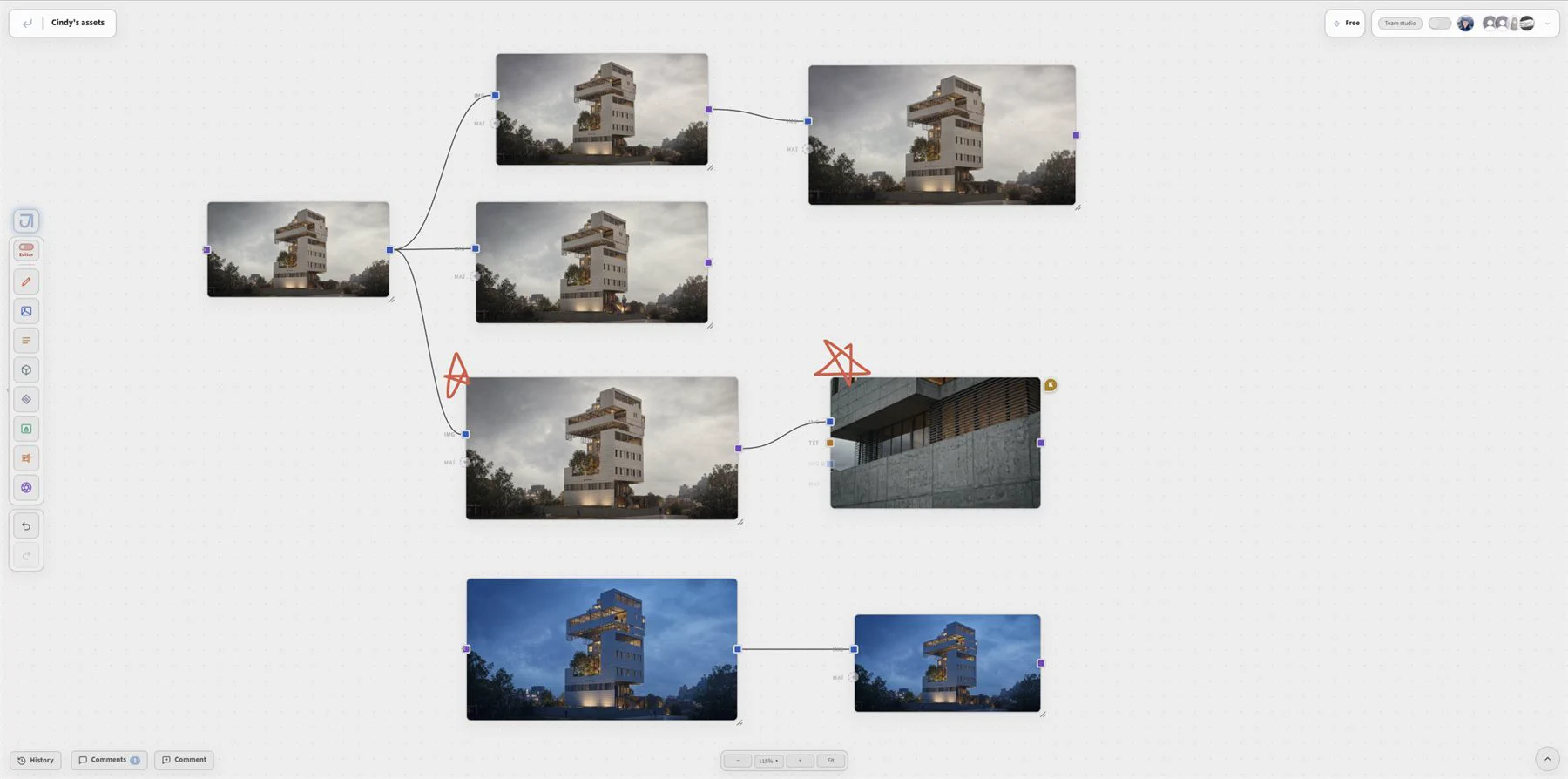
Roles. Admin owns the team and manages seats. Editor has full creative rights and can invite viewers. Viewer can read the canvas and comment on it. Each role has its own color, used on its chip in the members bar and on its live cursor.
Locks. A role decides who may act; a lock decides what may be acted on. Right-click a selection and choose Lock. A locked item refuses moves, edits and deletes, yours and your teammates', until the same menu is used to unlock it.
Editor Mode
The making seat: every toolbar function, with its real purpose.
The left rail carries two seats and one switch. Editor is the making seat: it creates blocks, wires them, and runs them. Flip the switch at the top of the rail and the same column becomes Viewer, the marking-up seat. Both seats keep Undo and Redo; nothing else moves.
The symbols below are the app's own, in the app's own colors. Every block type owns an accent, and that accent is what you look for on the canvas.
Dropping and wiring
Dropping blocks. Right-click empty canvas or use the toolbar; blocks spawn centered in your view, sized to your zoom, briefly glowing so you can find them.
Wiring. Drag from an output port to a compatible input. Wires carry the current content of a block. Replace the image in a source block and everything downstream sees the new one.
Selecting. Drag left to right for a window select: only what is fully inside. Drag right to left for a crossing select: everything you touch.
The under-block toolbar
Not every action is a block. Operations that act on an image live on that image: hover a result and the toolbar under it carries Upscale, Iterate, Download, Expand, and the rest.
Viewer Mode
The marking-up seat: annotation, references, boards, and formats.
Flip the rail's switch and the column becomes Viewer: the seat for reading a canvas and marking it up. Nothing here runs an engine. Reviewers work in this mode, and so do you when the work is to be discussed rather than made.
A Viewer seat and Viewer mode are different things: the role decides what you may do on a canvas, the mode decides which tools the rail is showing. An Editor uses Viewer mode all the time.
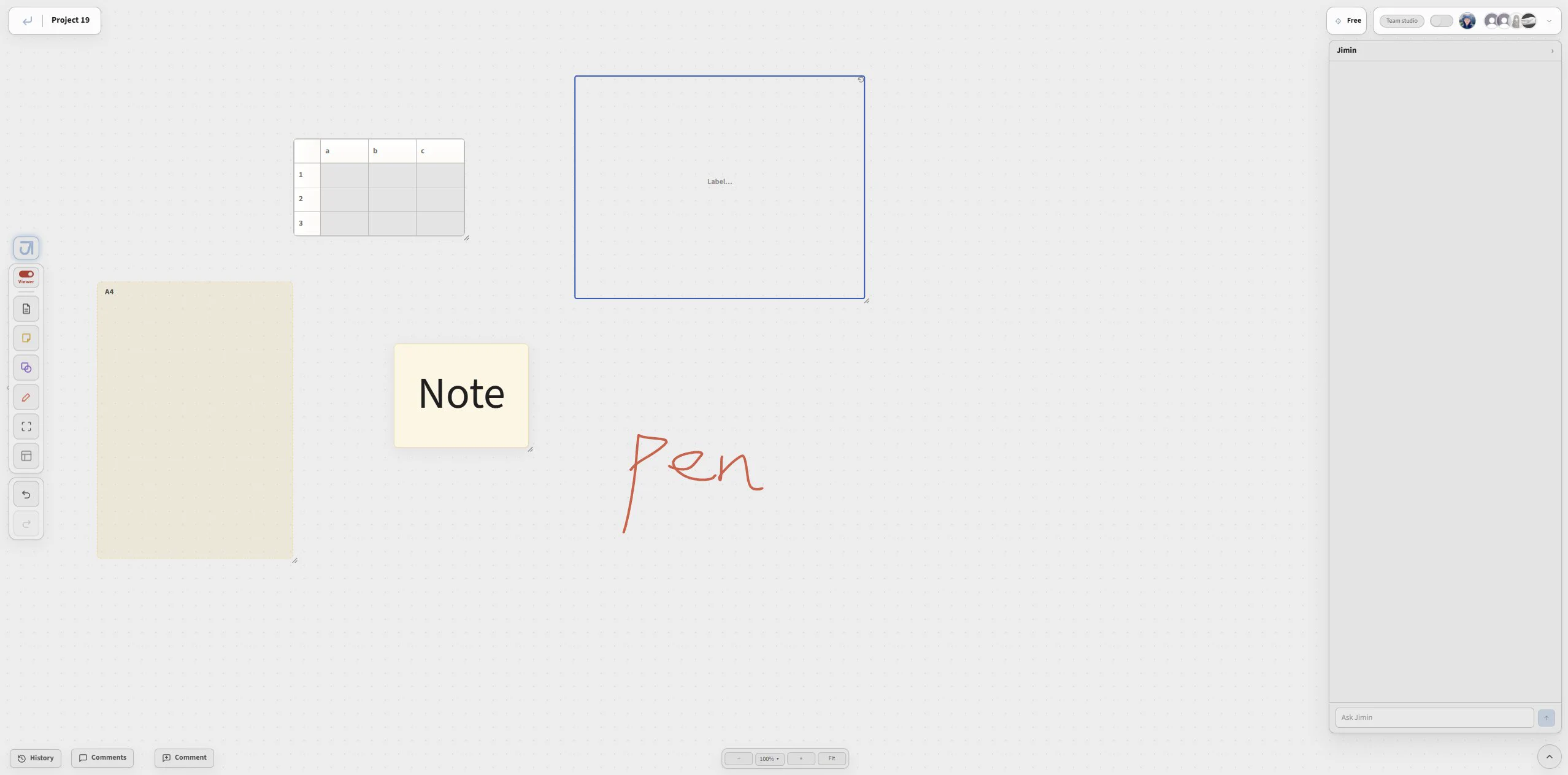
Marking up
- Annotate for freehand ink on the canvas.
- Shape for rectangles, ellipses, and arrows.
- Note for labels anywhere they help.
- Comments for conversation that stays beside the work.
Collaboration
Teams, seats, live cursors, and one canvas two people can work on.
Creating and joining a team
Admins can create separate teams, each with its own Editors and Viewers. Joining a team gives you access to every canvas listed under that team, unless the Admin sets a canvas otherwise.
Live collaboration
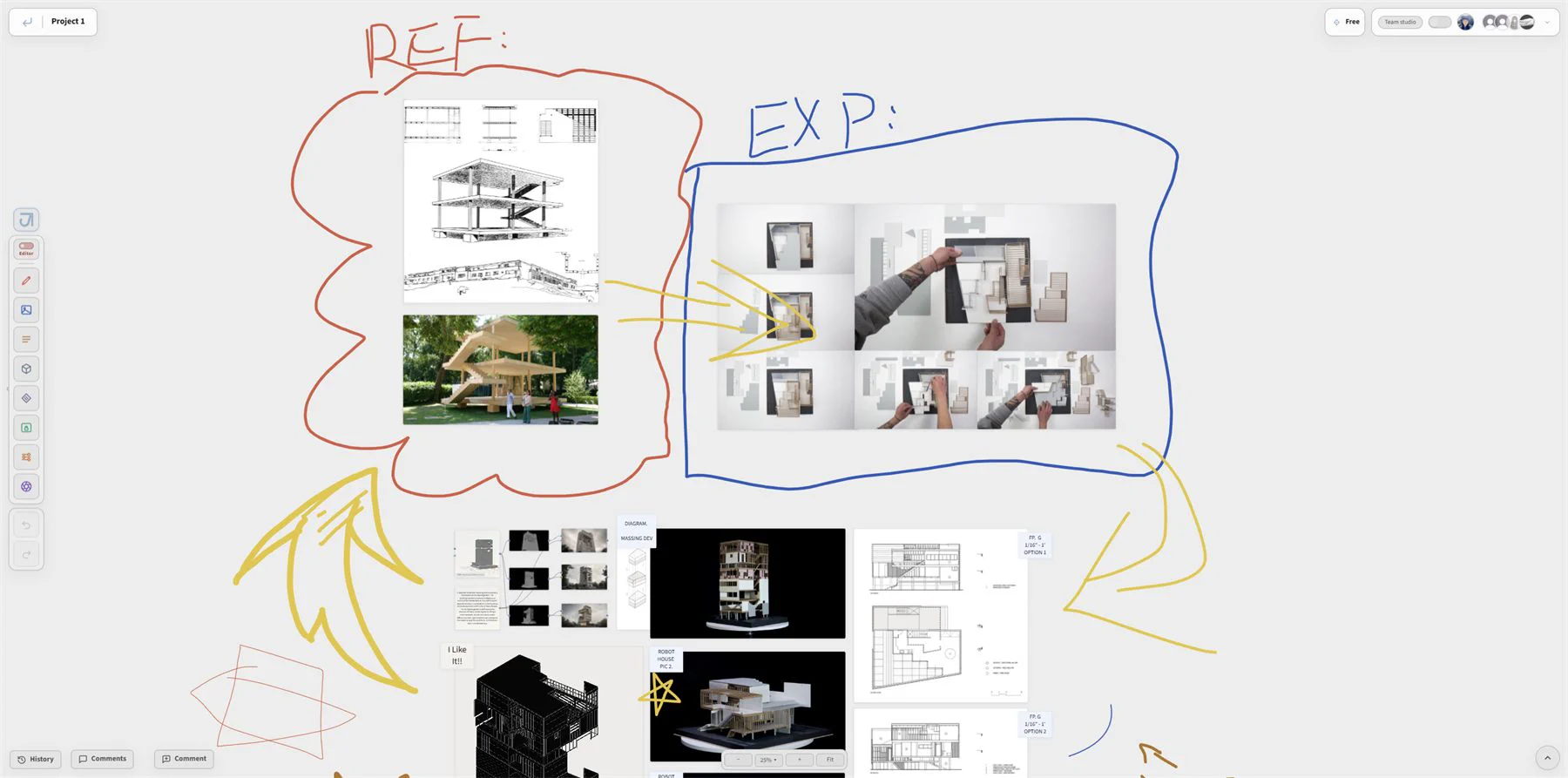
Teammates' cursors and ink appear in real time; drawings, deletions, moves, and transforms sync. The presence list shows who's online, and locks apply to everyone.
Quick Keys
Every shortcut, by surface.
Two standing rules make the rest predictable. A field that owns the caret owns the keys: while you are typing in a text field, every shortcut below is native editing instead. Ctrl+R is never a canvas key: it reloads the browser, so the canvas catches it instead.