Text to Render
An image from words alone — for the moment before there is geometry.
Words in, image out. No geometry input is needed — the engines invent freely, guided by whatever settings you list. See the Prompting Tutorial for specific tips.
Reach for it before a scheme exists: mood, register, a first look at a material family, an atmosphere to argue about. Once there is geometry, switch to Image to Render: describing a building in words leaves the engine free to redesign it.
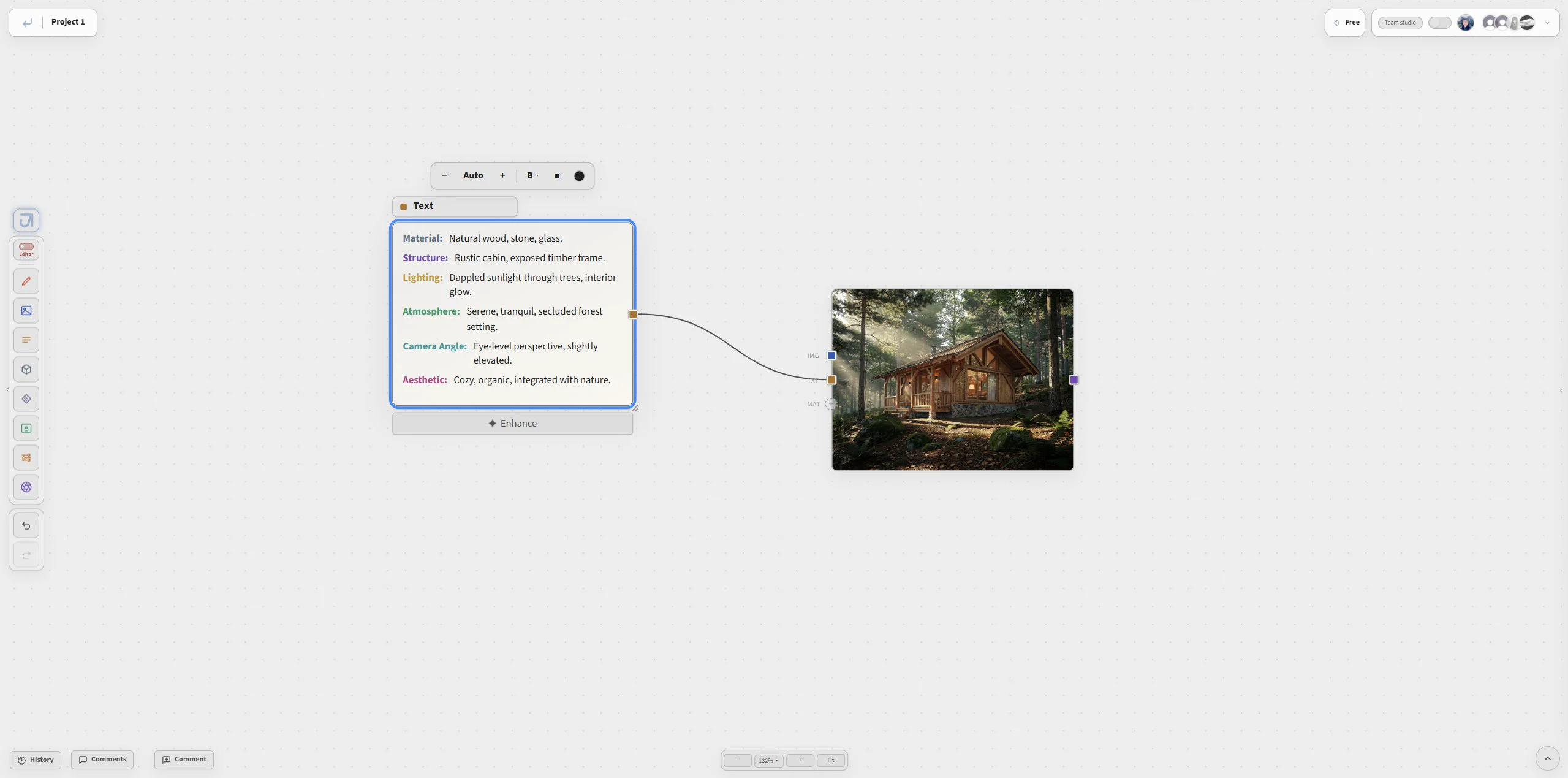
Use the canvas view to check what the engine received, then read the result as the first visual answer to that written brief.
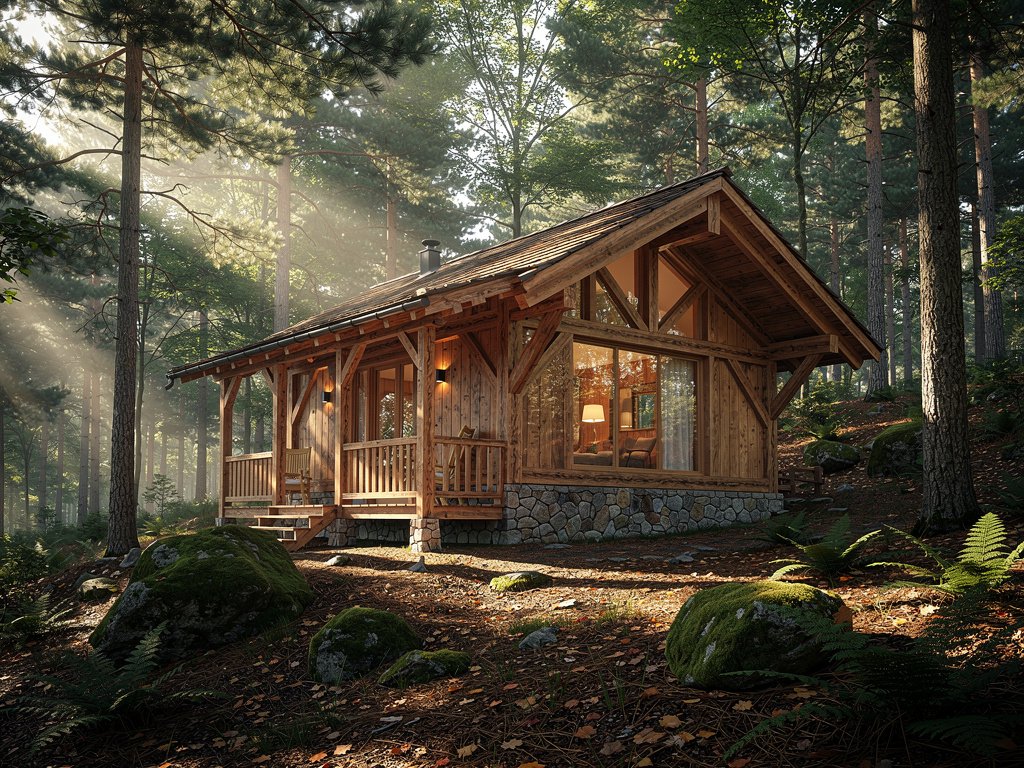
How to wire it
- Make a Text block and write your intent. One or two lines is enough to start.
- Press and Jimin expands it into the six labelled aspects — Material, Structure, Lighting, Atmosphere, Camera Angle, Aesthetic — each editable. See Prompt Writer.
- Wire it to a Render block's TXT port. Leave IMG empty: with no image wired, the roster shows the engines that generate from text alone.
- Set the frame in Tune, not in words — Image Aspect and Camera Angle belong there.
- Run. The result lands in the block and stays in History.
Image to Render
The shortest path from what you already have to a finished frame.
The most-used path in the app. An image you already have — a massing screenshot, a gray model view, a photograph of the site, a sketch — becomes a finished render without the design being reinterpreted. This is the first render most people make, and the one most projects live on.
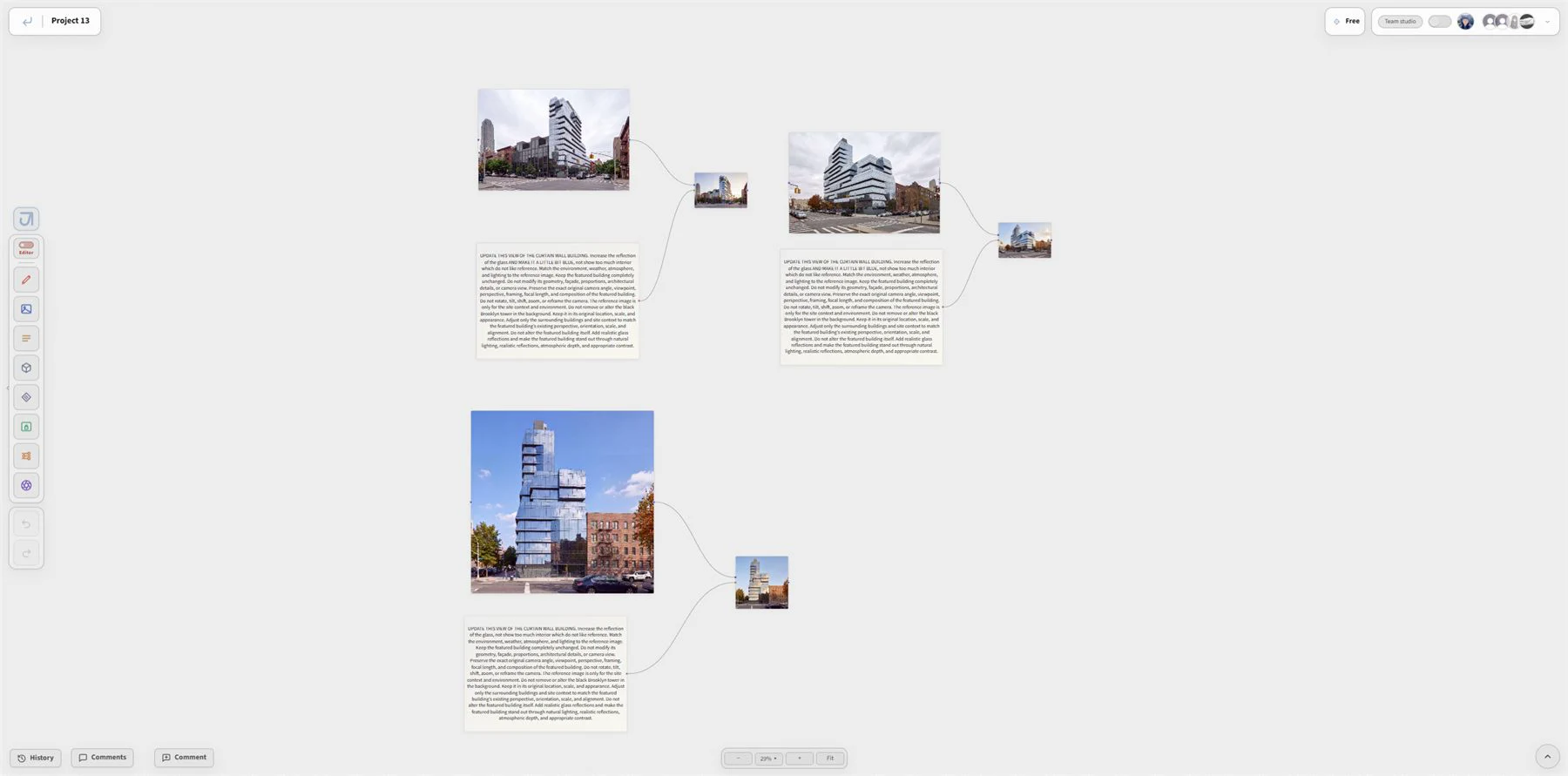
How to wire it
- Start from what you have. Drag in a massing screenshot, a gray model view, a sketch — or fetch your real site (Site Generator). Anything visual lands in an Image block.
- Wire it to a Render block's IMG port. Wire a Text block (your enhanced prompt) to TXT.
- Pick an engine. The engine list shows each model with its maker's mark. Rules of thumb: engines w/ edit transform your input image (keep the design, change the dress); generation engines invent more freely. The Render Engines table says which is which.
- Fine Tuning. The Tune panel sets what other tools make you prompt for: Image Aspect · Camera Angle · Camera Lens · Time of Day · Weather · Mood · Finish. A Tune setting always wins over vague prompt language — set "Time of Day: dusk" once instead of writing "at dusk, evening light, sunset glow".
- Run. The result lands in the block; every run is kept in History, nothing overwrites.
Prompting more doesn't always mean better results. What rewards you is precision: accurate terms, exact descriptions — and order matters, because engines weigh what comes first. Try : Jimin reorders and rephrases your prompt for maximum effect. See the Prompting Tutorial for more.
GeoLock
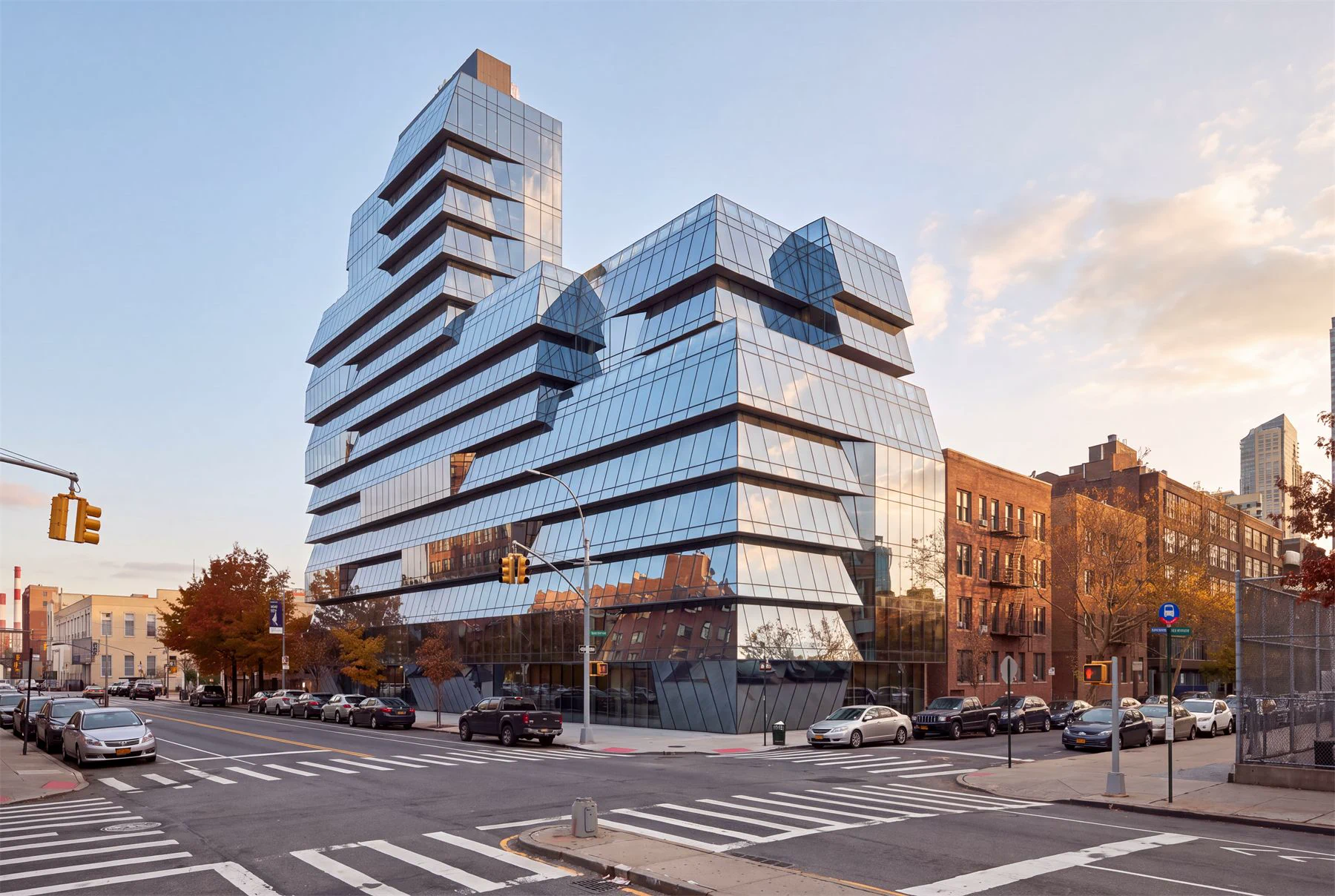
If the engine starts redesigning rather than dressing, turn on GeoLock: it holds your design's geometry fixed while the engine works on materials, lighting and atmosphere. The massing stays as you modelled it.
If geometry still drifts: check that your input view is clean (one building, clear silhouette), prefer an engine w/ edit, and lower creativity on iterations.
Iterate
Iterate takes a result you like and produces controlled variations. The creativity slider sets how far a variation may travel — low keeps the image close, high lets it wander; count makes multiple candidates per run. Use Iterate's own Time of Day / Weather / Season / Mood / Figures / Finish rows to vary one dimension deliberately.
3D to Render
From a model in the workspace to a framed, rendered image.
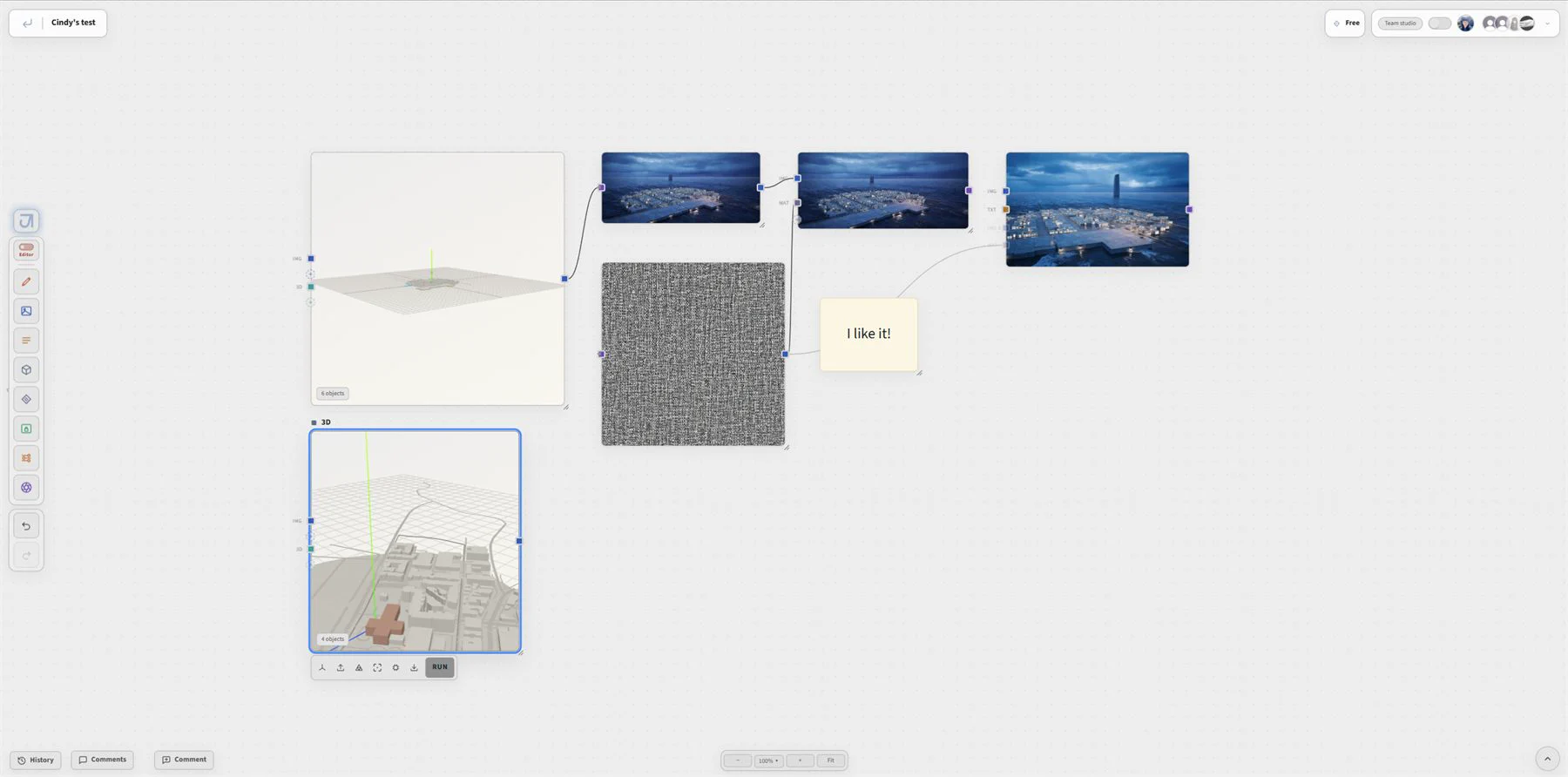
The 3D block holds a real scene: a model you loaded, massing you shaped, a site you fetched. 3D to Render is the path from that scene to an image — you set the camera in the workspace, capture the view, and the capture becomes the render's input like any other image.
The advantage over screenshotting another application is that the camera is part of the project: the same view can be recaptured after the massing changes, and the render chain downstream keeps working.
How to wire it
- Open the 3D block's workspace. Load a model, or shape massing with Designer, or fetch the site with Site Generator.
- Set your view. Front / Back / Left / Right / Top, axon, worm's-eye; lens in millimetres. Set the camera to the view you actually want before rendering — a render cannot recover a viewpoint the capture never had.
- Capture (Ctrl S). The view becomes an image on the block, and captured stills feed straight back into renders — and onto your project card.
- Wire the 3D block to a Render block's IMG port, add your Text block on TXT, and pick an engine. A clay capture with a clear silhouette is the best possible input for an engine w/ edit.
- Run.
Camera and lens
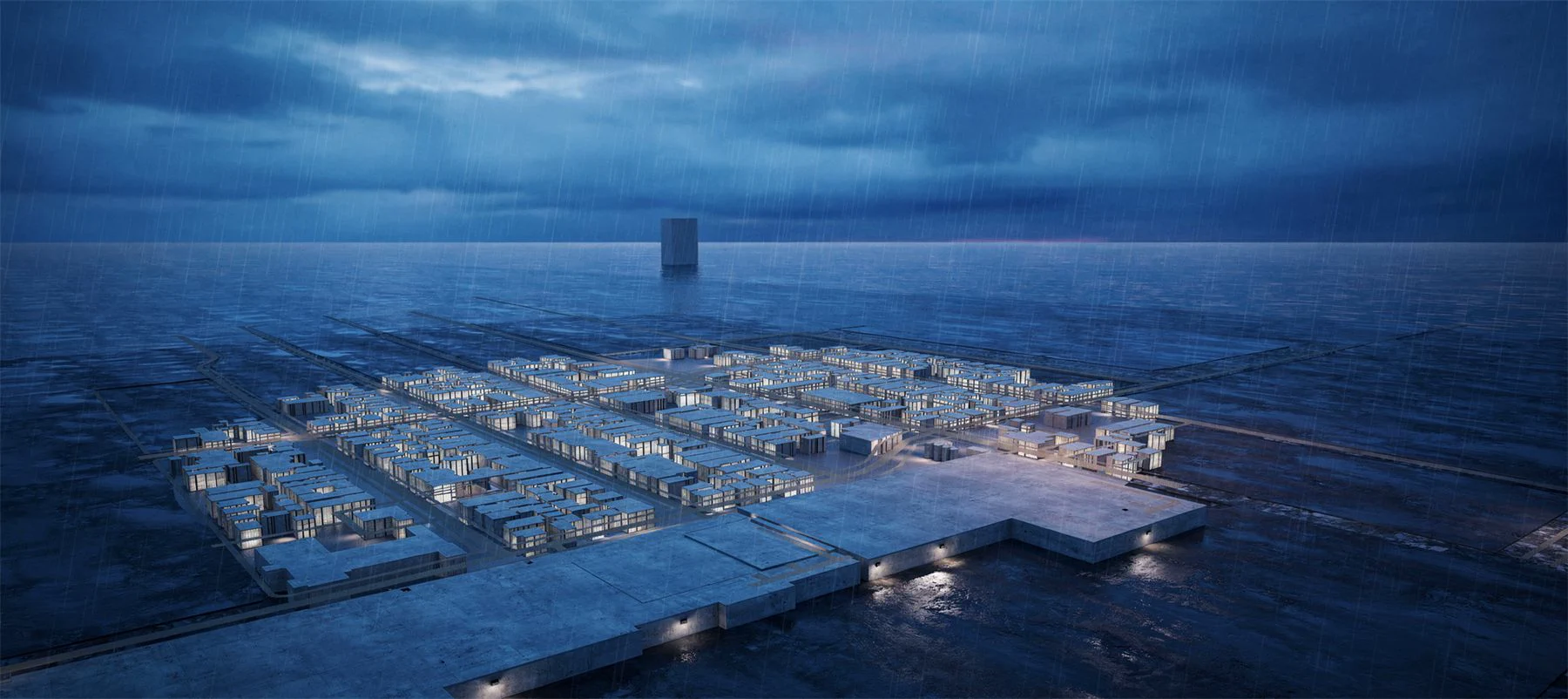
A camera angle written in words is a request; a camera angle set in the workspace is a fact. The same is true of lens: a 24mm and a 50mm of the same corner are different buildings to the eye, and no amount of prompt language fixes a capture taken from the wrong place.
Image to 3D
Imagery in, a real mesh out — geometry you can turn, light and capture.
3D generation. A 3D block turns imagery into a model: single-image or multi-view engines. Captured stills from a 3D block feed straight back into renders — and onto your project card.
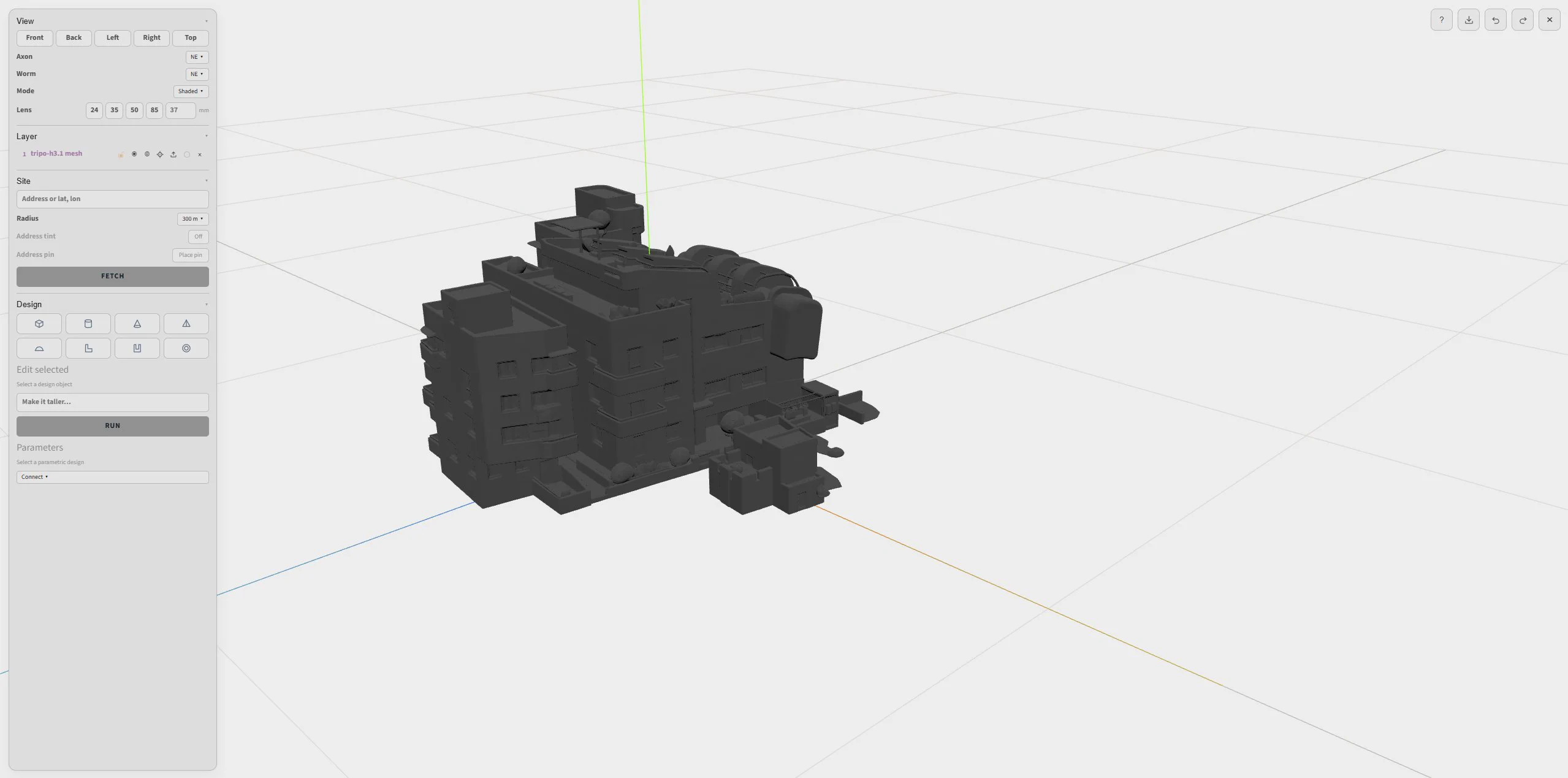
What comes back is real geometry in the workspace, not a picture of geometry: you can orbit it, place it beside your massing, light it and capture views from it. The 3D Engines table says which engine takes one image and which wants several.
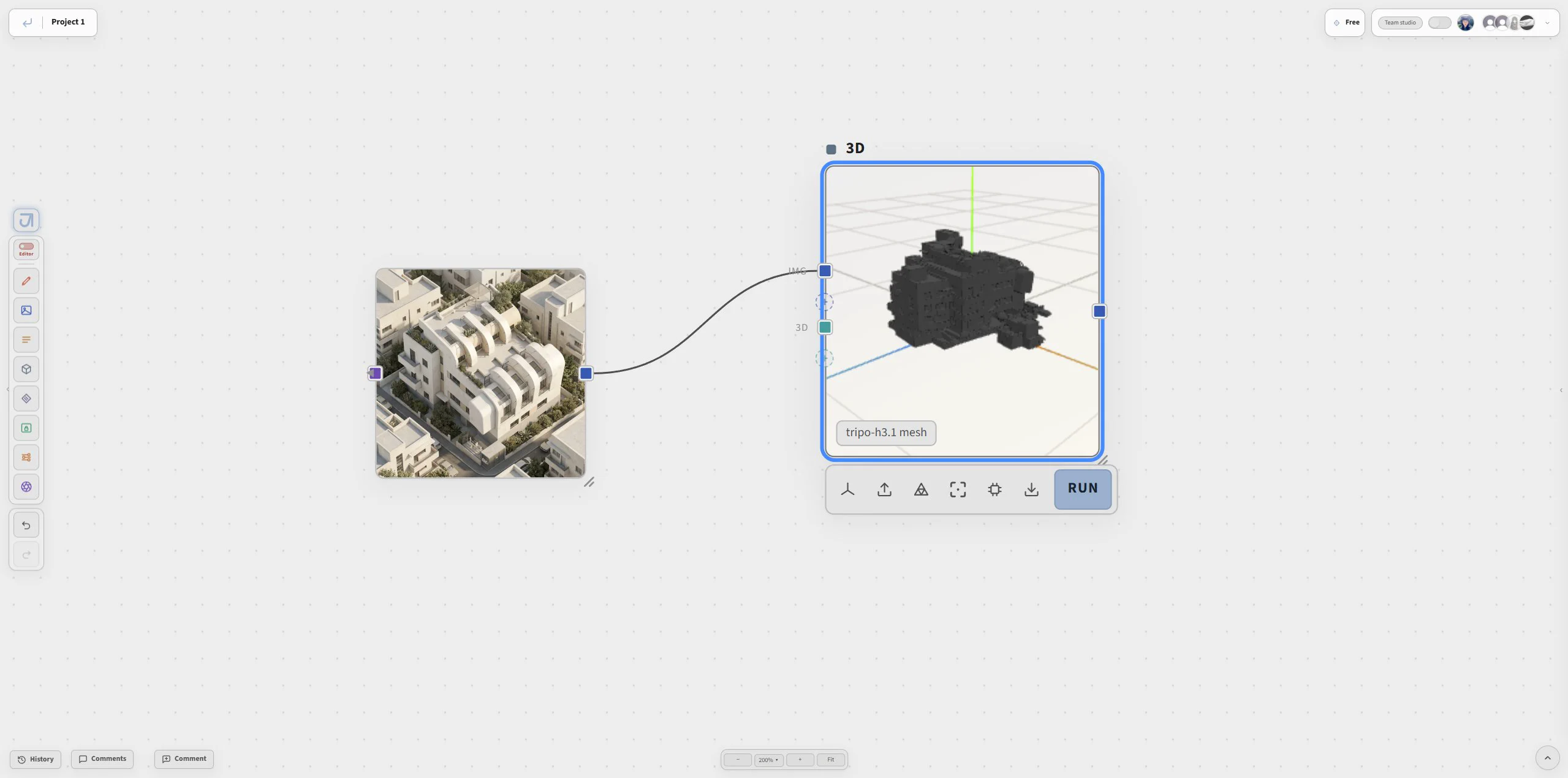
After the source image is accepted, review the model itself rather than judging the workflow from the still alone.
How to wire it
- Wire an Image block into a 3D block. One clean image with a readable silhouette beats three ambiguous ones.
- Pick the engine and the tier. Geometry is the product — geometry only (clay) is the default for new blocks, and it is usually the right one: textures pollute captures, and the render engine downstream is what dresses the object anyway.
- Give a multi-view engine its views. Wire more than one image and a multi-view engine uses them; a single-image engine takes the first.
- Run, then open the workspace to see the result in place.
Still to Motion
A still becomes a short motion study — one camera move, one atmosphere.
Wire a still into an Animate block for video: pick the engine, duration, and resolution; the Move row sets camera motion. Short, single-intent clips read best — one camera move, one atmosphere.
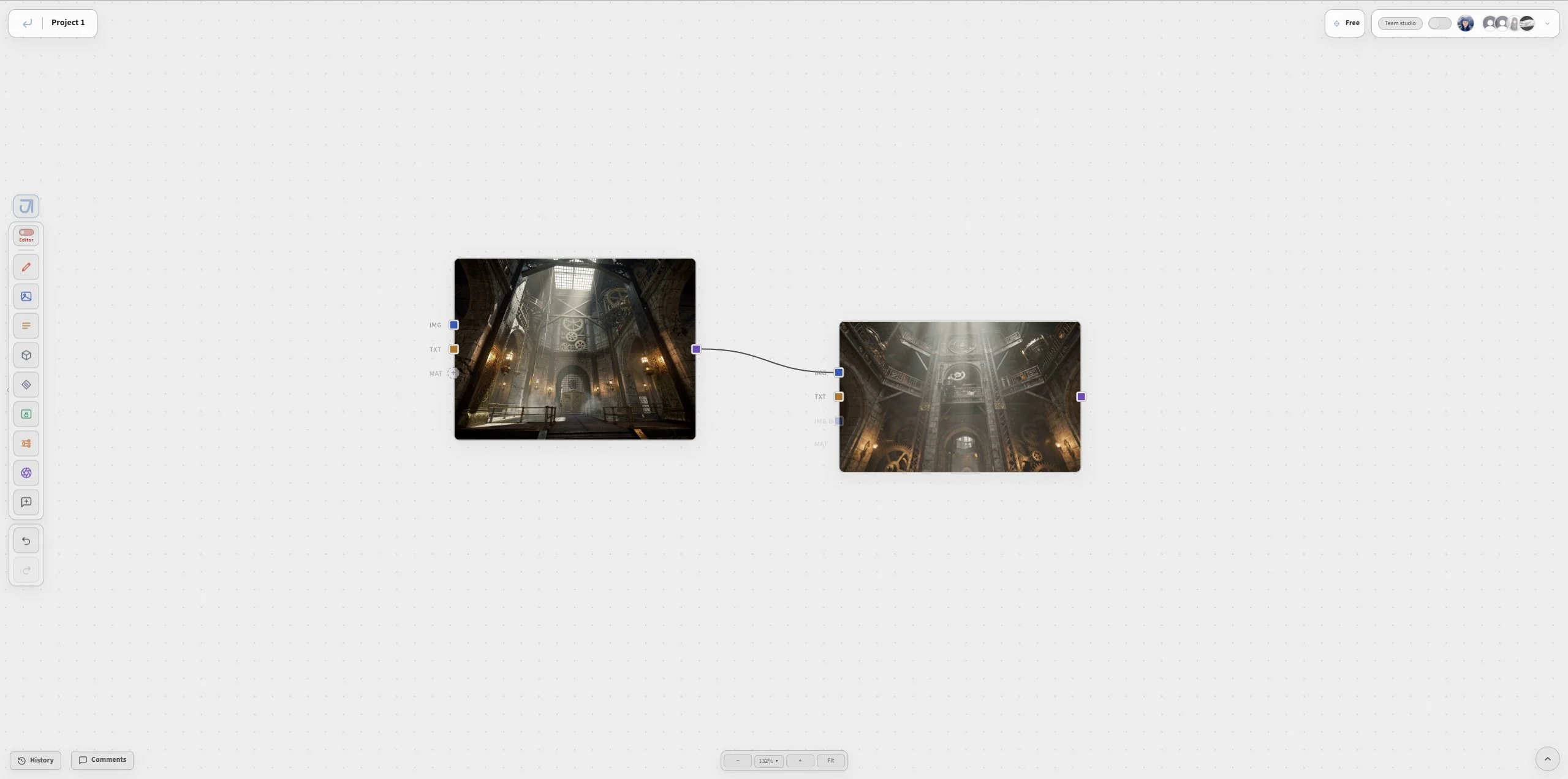
Start by checking the still frame. If the image is unstable, the motion pass will usually amplify the problem.
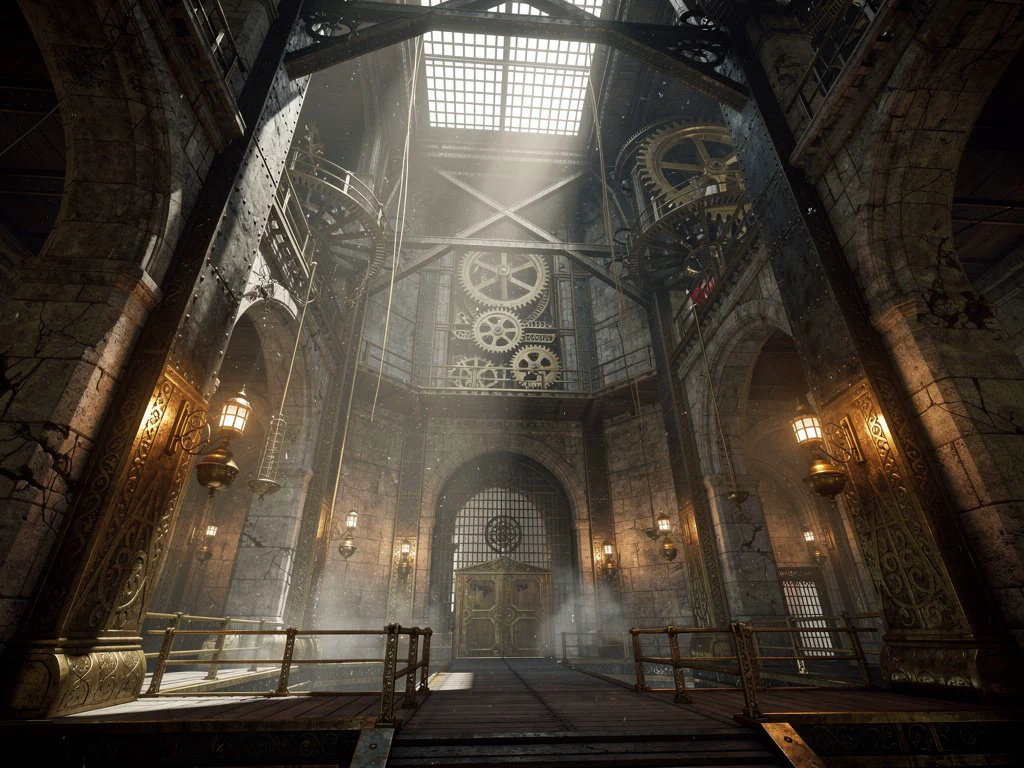
Then review the generated motion as its own output, not just as a decorated still.
How to wire it
- Start from a still you are happy with. Motion inherits every fault of its input frame and adds movement to it — fix the render first.
- Wire it into the Render block in video mode (the camera/video pill on the block is the mode) and wire your Text block if the motion needs describing.
- Set duration and resolution. Both are engine-specific; the Video Engines table lists what each one accepts.
- Set the Move row. One move: a slow push, a rise, a pan. Two moves in five seconds read as a mistake.
- Run, and expect to wait — video is the slowest thing in the app by an order of magnitude.
Tips
- One intent per clip. A camera move and a weather change and people arriving is three clips.
- Short beats long. Five seconds that hold together is a better deliverable than fifteen that drift.
- Some engines take a closing frame. Where an engine accepts one, a transition between two of your own stills is far more controllable than a described one.